> ## Documentation Index
> Fetch the complete documentation index at: https://docs2.armin.cx/llms.txt
> Use this file to discover all available pages before exploring further.
# Inbox & Views
> What you need to know about the inbox
[***Intro-Disclaimer: Make sure you mastered introduction before going into such greater detail!***](https://docs.armin.cx/introduction)
[2min Video on "Views & Subviews":](https://www.loom.com/share/d98563e266114832ba2d3e531f593ad6?sid=d9e4c57a-f299-4fd6-862d-74db2b799222)
 # **About Views & Subviews**
The inbox is a frontend-display-feature that enables you to set default views based on your company's needs:
* teams
* brands
* shops
* languages
... on whatever base you want operations to seamlessly oversight what's going on, views lets you
* conglomerate the channels needed, in one "master-inbox-view"
* decentralize ticketing analytics based on segmented views introduced above
* assign admin-rights based on your company's infrastructure
..watch the video above (2min) to understand the inbox and get going!
## Subviews
You can easily create Subviews, by:
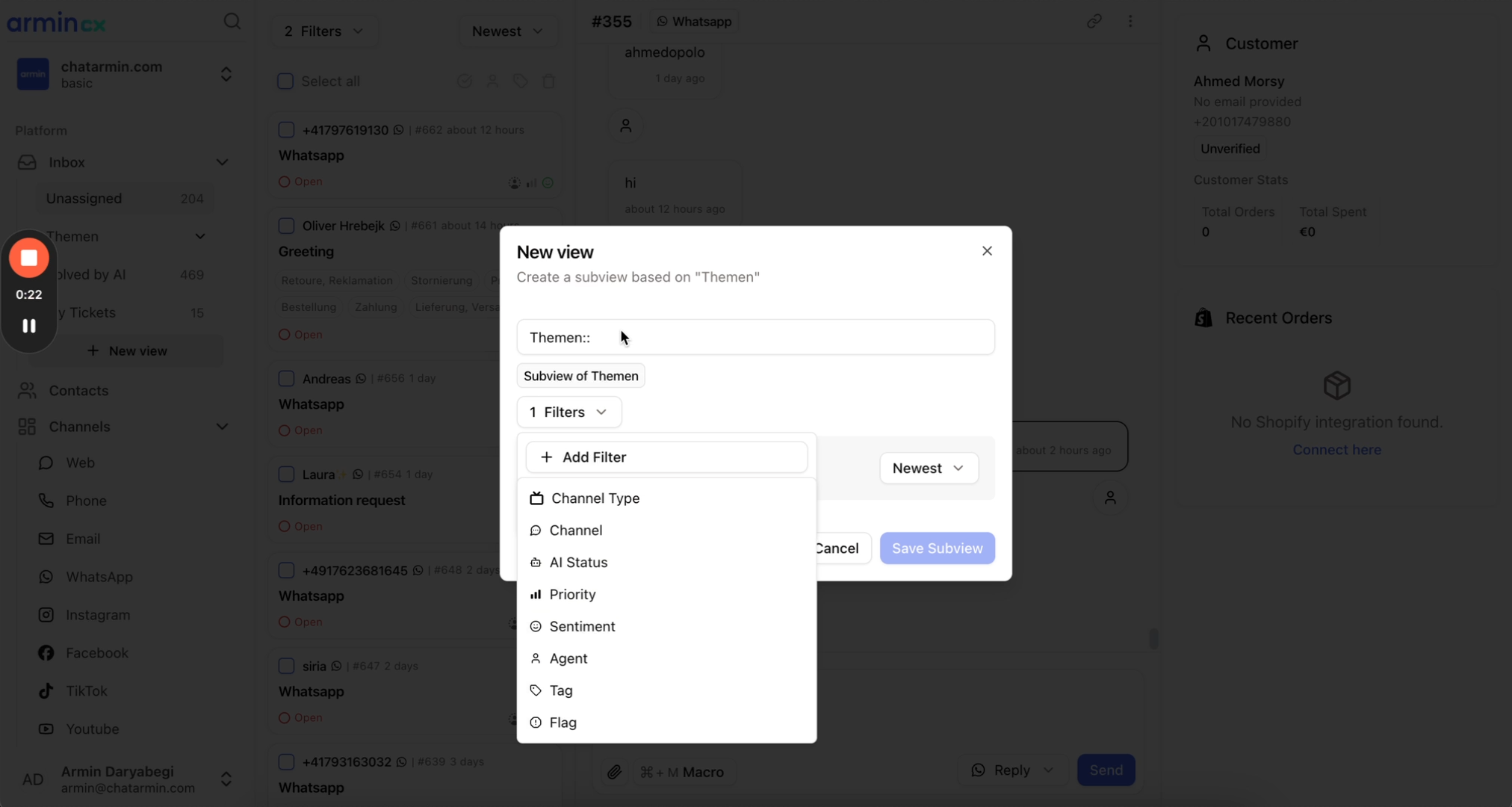
Click on "+ Add View" in the Inbox\\
# **About Views & Subviews**
The inbox is a frontend-display-feature that enables you to set default views based on your company's needs:
* teams
* brands
* shops
* languages
... on whatever base you want operations to seamlessly oversight what's going on, views lets you
* conglomerate the channels needed, in one "master-inbox-view"
* decentralize ticketing analytics based on segmented views introduced above
* assign admin-rights based on your company's infrastructure
..watch the video above (2min) to understand the inbox and get going!
## Subviews
You can easily create Subviews, by:
Click on "+ Add View" in the Inbox\\
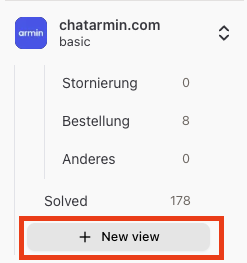 Next, you type in the **Parent Views' Name** followed by "**::**" and the **Subviews' Name**. Like this:
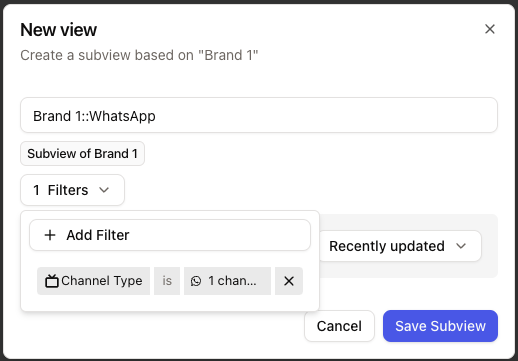 Here you will see, that it **initially** takes the **Filters** from the **Parent View**. You can directly change & set the \*\*desired Filters for the Subview. \*\*Those will ****OVERWRITE theParent's Filters**** . So those changes will NOT reflect/change any filters from the Parent View and will be overwriting the Parent's filters
So the Subview will show the Tickets **ONLY** by the **Filters set in the Subview**, not by the ones set in the Parent view AND Sub-view
Here you will see, that it **initially** takes the **Filters** from the **Parent View**. You can directly change & set the \*\*desired Filters for the Subview. \*\*Those will ****OVERWRITE theParent's Filters**** . So those changes will NOT reflect/change any filters from the Parent View and will be overwriting the Parent's filters
So the Subview will show the Tickets **ONLY** by the **Filters set in the Subview**, not by the ones set in the Parent view AND Sub-view