> ## Documentation Index
> Fetch the complete documentation index at: https://docs2.armin.cx/llms.txt
> Use this file to discover all available pages before exploring further.
# Working with Tags
> Tags are essential in armincx. Learn how to use them right
## About tags
Tags are the most efficient way to organize your inbox by creating views that show only the tickets with a specific tag. Combined with AI auto-tagging, your inbox stays perfectly structured at all times.
[Make sure you heave read the Inbox & Views section before starting with Tags](https://docs.armin.cx/inbox/intro)
Tags are used to assign a specific context or category to a ticket. Inside the ticket, you can see all assigned tags, and you can add a new one using the small + icon.
 ## Manage tags
There are two places where you can manage your tags:
1. **Create new tags:** When you click the + icon inside a ticket and search for a tag that doesn’t exist yet, you can create it on the spot and use it from then on.
2. **Edit existing tags:** In the account-settings, you can edit your existing tags, rename them, or delete them entirely.
## Dynamic vs. Static-Tagging
To keep your inbox perfectly organized, new tickets need to receive tags automatically. Luckily, that’s exactly what AI is for.
In your AI Agents settings under *General*, you’ll find the auto-tagging option. There, you define the criteria the AI should use to automatically assign tags to incoming tickets.\
\
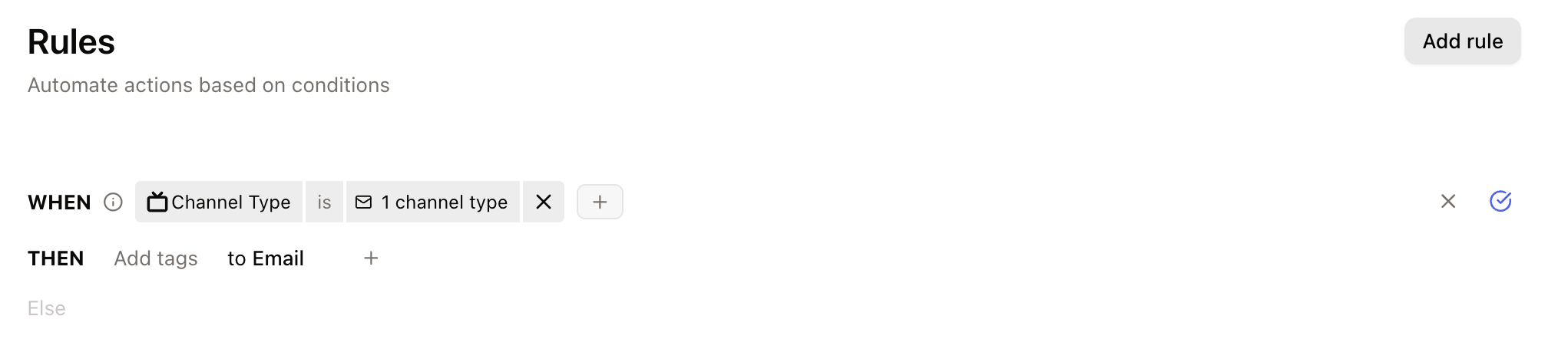
In contrast, under *Rules* you can define static conditions that automatically apply specific tags to tickets.
## Manage tags
There are two places where you can manage your tags:
1. **Create new tags:** When you click the + icon inside a ticket and search for a tag that doesn’t exist yet, you can create it on the spot and use it from then on.
2. **Edit existing tags:** In the account-settings, you can edit your existing tags, rename them, or delete them entirely.
## Dynamic vs. Static-Tagging
To keep your inbox perfectly organized, new tickets need to receive tags automatically. Luckily, that’s exactly what AI is for.
In your AI Agents settings under *General*, you’ll find the auto-tagging option. There, you define the criteria the AI should use to automatically assign tags to incoming tickets.\
\
In contrast, under *Rules* you can define static conditions that automatically apply specific tags to tickets.