> ## Documentation Index
> Fetch the complete documentation index at: https://docs2.armin.cx/llms.txt
> Use this file to discover all available pages before exploring further.
# Working with Tickets
> Learn how to work in you tickets
## Working in tickets
Tickets are the central element in cx. Learn how to work properly within a ticket.
## Definition of ticket
A ticket in cx is a conversation with a customer. Every time a customer contacts your team through a connected channel, a ticket is created in the inbox. These tickets have the status *open*, are not assigned to any agent, and have no tag. (You can find more about tags [here](https://docs.armin.cx/inbox/tags))
In the ticket preview, as well as at the top of the ticket view, you see several information and have several options to attach information to the ticket.
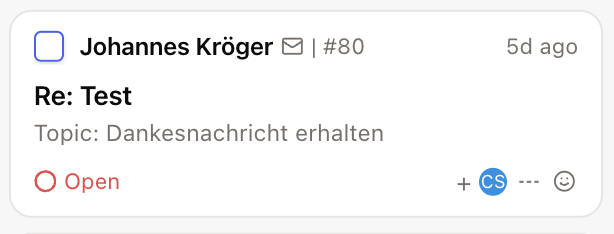 **Information:**
1. Name of the contact
2. Channel icon
3. Sequential ticket number
4. Time the ticket was created
5. Ticket subject
6. AI-generated short summary of the content
**Ticket actions:**
1. Change status (open, on hold, resolved, closed)
2. Set tags
3. Assign an agent
4. Assign a priority
5. Assign sentiment
You may have noticed that the same options also appear on the left side of the ticket view in the middle of the screen. On the right side, you can:
* translate the ticket
* assign it to someone
* merge it with another ticket
* and resolve it
**Information:**
1. Name of the contact
2. Channel icon
3. Sequential ticket number
4. Time the ticket was created
5. Ticket subject
6. AI-generated short summary of the content
**Ticket actions:**
1. Change status (open, on hold, resolved, closed)
2. Set tags
3. Assign an agent
4. Assign a priority
5. Assign sentiment
You may have noticed that the same options also appear on the left side of the ticket view in the middle of the screen. On the right side, you can:
* translate the ticket
* assign it to someone
* merge it with another ticket
* and resolve it
 ## Respond to a ticket
In the middle of the screen, the upper section shows the conversation history of the ticket. Below that, you’ll find the reply area where you can respond to the ticket.
## Respond to a ticket
In the middle of the screen, the upper section shows the conversation history of the ticket. Below that, you’ll find the reply area where you can respond to the ticket.
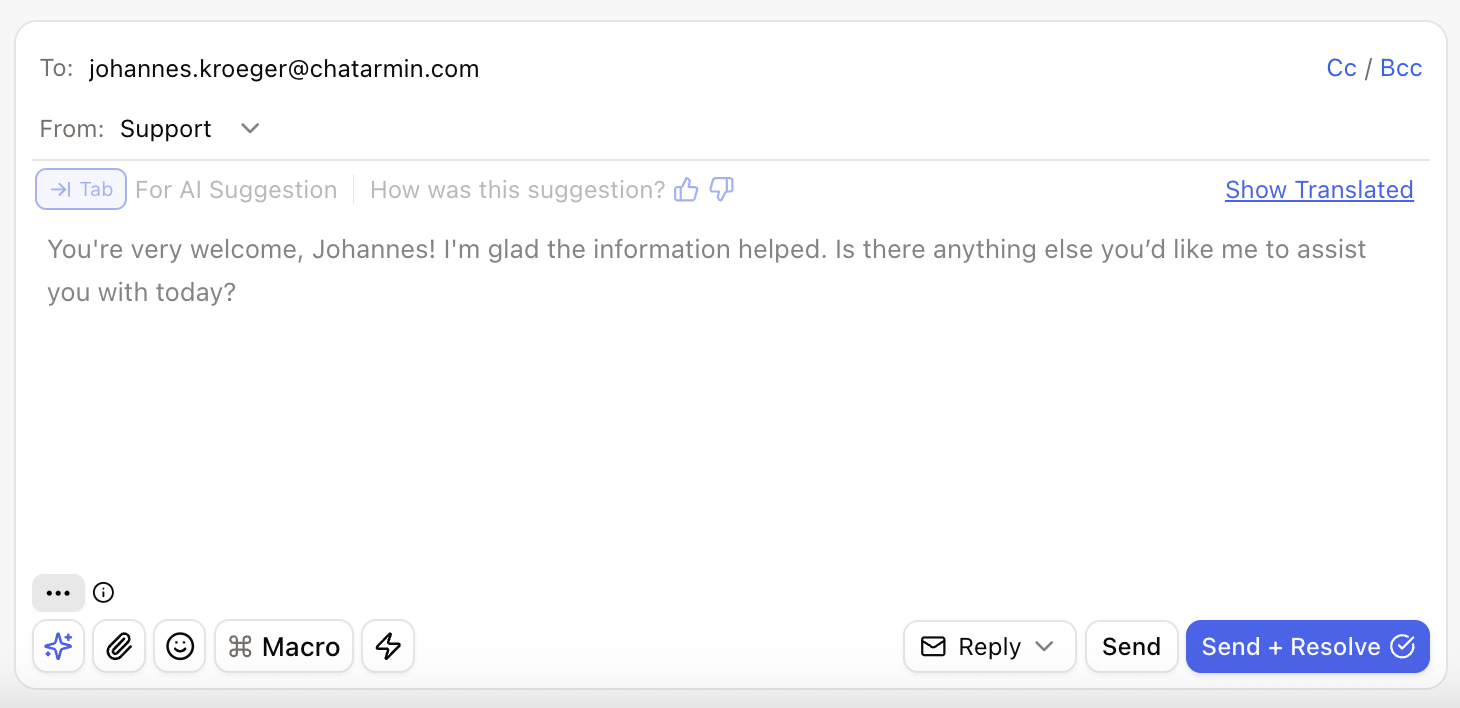 The AI generates a draft message based on the information it’s been trained on and improves with every ticket you handle.
With one tap on **Tab**, you accept the AI’s draft. You can edit it or send it right away.
Additional actions:
* Click the star to give the AI feedback based on your edits
* Add attachments and emojis
* Use macros for frequently used standard replies
* Trigger a workflow
On the right side, you can choose whether to reply to the customer, add an internal note, or forward the ticket.
Once you're happy with your response, you can either send it or send it and mark the ticket as resolved.
The AI generates a draft message based on the information it’s been trained on and improves with every ticket you handle.
With one tap on **Tab**, you accept the AI’s draft. You can edit it or send it right away.
Additional actions:
* Click the star to give the AI feedback based on your edits
* Add attachments and emojis
* Use macros for frequently used standard replies
* Trigger a workflow
On the right side, you can choose whether to reply to the customer, add an internal note, or forward the ticket.
Once you're happy with your response, you can either send it or send it and mark the ticket as resolved.