> ## Documentation Index
> Fetch the complete documentation index at: https://docs2.armin.cx/llms.txt
> Use this file to discover all available pages before exploring further.
# Ticket Fields
> Capture structured data with custom fields and AI-powered auto-population
## Overview
Ticket Fields allow you to capture structured information about customer conversations beyond the standard ticket properties. Create custom fields to track product details, issue categories, resolution metrics, or any data specific to your support workflow.
### Key Capabilities
* **5 Field Types**: Text, Number, Dropdown, Boolean, and Product fields
* **AI Auto-Population**: Automatically fill fields by analyzing conversation context
* **Smart Product Linking**: Connect tickets to purchased products from customer orders
* **Advanced Analytics**: Track field usage, trends, and distribution over time
* **Required Field Validation**: Ensure critical information is captured before resolution
* **Channel-Specific Fields**: Show different fields based on communication channel
 ***
## Getting Started
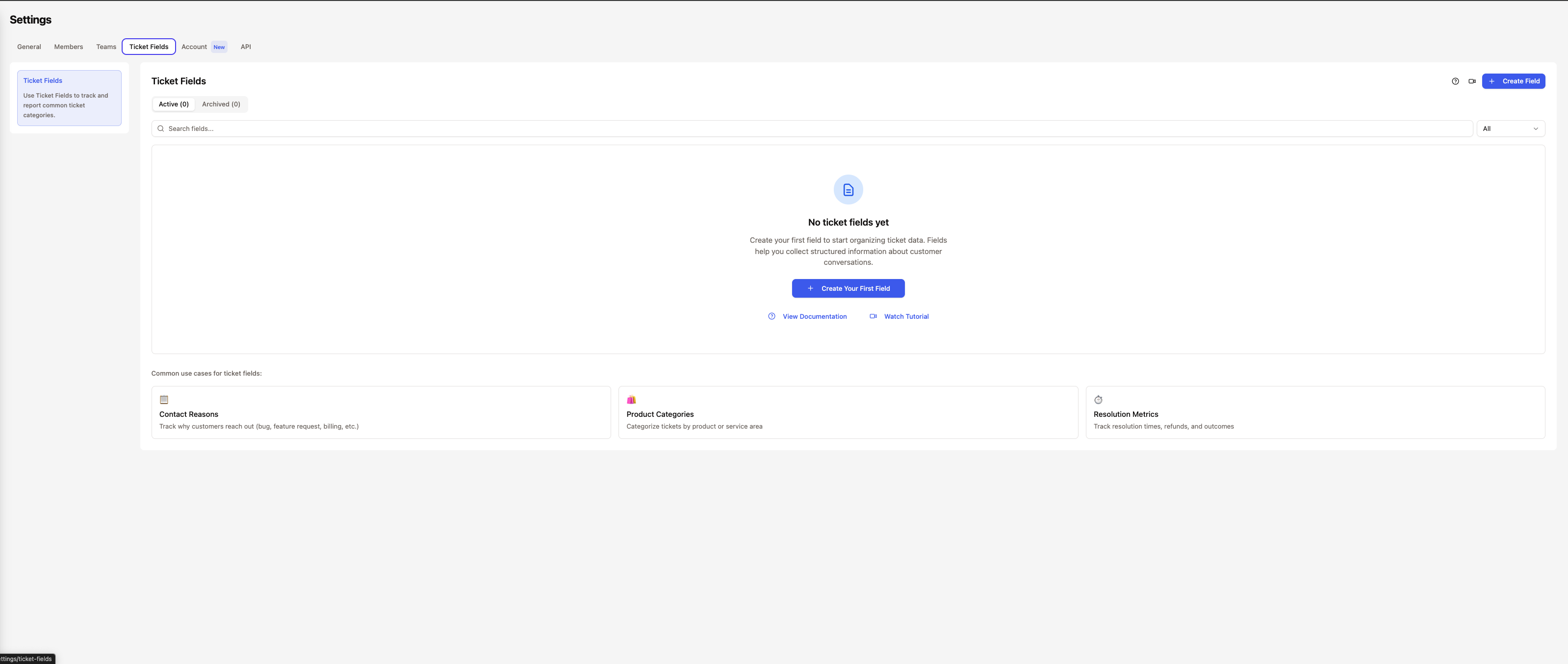
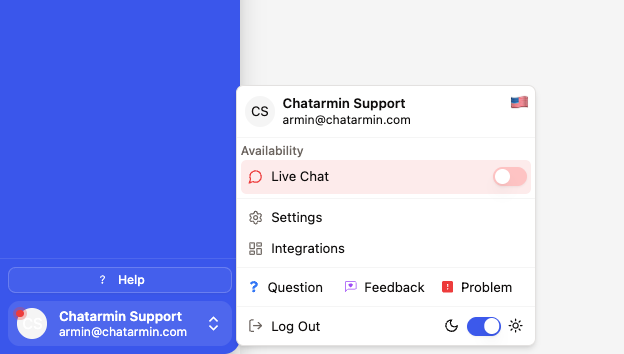
Go to **Settings** → **Ticket Fields** to access field management.
***
## Getting Started
Go to **Settings** → **Ticket Fields** to access field management.
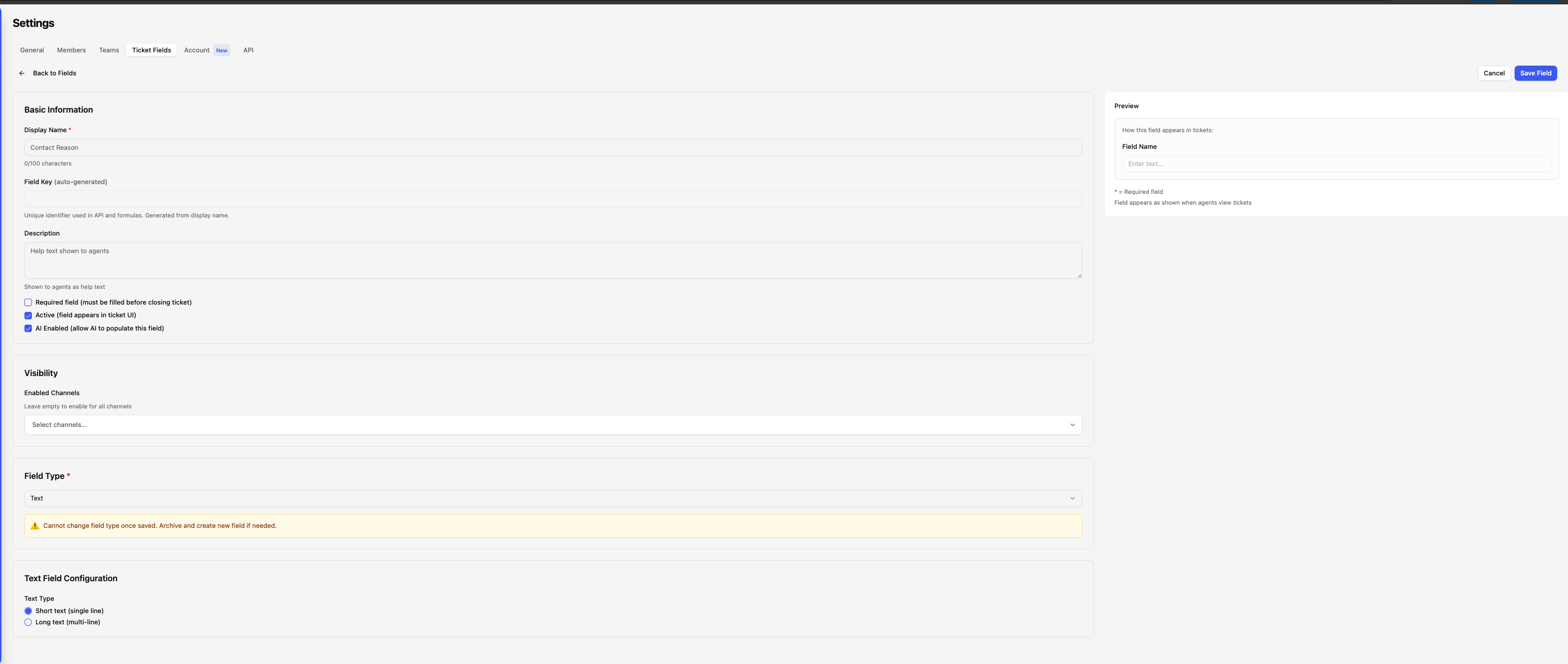
 Click **Create Field** to open the field configuration panel.
You'll configure:
* **Display Name**: How the field appears to agents
* **Field Type**: Text, Number, Dropdown, Boolean, or Product
* **Description**: Optional help text for agents
* **Channel Availability**: Which channels should show this field
Click **Create Field** to open the field configuration panel.
You'll configure:
* **Display Name**: How the field appears to agents
* **Field Type**: Text, Number, Dropdown, Boolean, or Product
* **Description**: Optional help text for agents
* **Channel Availability**: Which channels should show this field
 Depending on the field type, configure specific options:
* **Text**: Single-line or multi-line input
* **Number**: Integer or decimal values
* **Dropdown**: Add custom options with nested hierarchies
* **Boolean**: Simple Yes/No toggle
* **Product**: Automatic integration with shop platforms
Field key is auto-generated from the display name and must be unique.
Toggle these options based on your needs:
* **AI Enabled**: Let AI automatically populate the field
* **Required**: Must be filled before ticket resolution
Combining AI-enabled + Required ensures critical data is captured automatically, with manual fallback if AI can't determine the value.
Save your field configuration. The field immediately becomes available on tickets for the enabled channels.
***
## Field Types
Depending on the field type, configure specific options:
* **Text**: Single-line or multi-line input
* **Number**: Integer or decimal values
* **Dropdown**: Add custom options with nested hierarchies
* **Boolean**: Simple Yes/No toggle
* **Product**: Automatic integration with shop platforms
Field key is auto-generated from the display name and must be unique.
Toggle these options based on your needs:
* **AI Enabled**: Let AI automatically populate the field
* **Required**: Must be filled before ticket resolution
Combining AI-enabled + Required ensures critical data is captured automatically, with manual fallback if AI can't determine the value.
Save your field configuration. The field immediately becomes available on tickets for the enabled channels.
***
## Field Types
 ### Text Field
Capture free-form text input from agents.
**Configuration Options:**
* **Single-line**: For short text like names, IDs, or brief notes
* **Multi-line**: For longer descriptions or detailed information
**Behavior:**
* Auto-saves when field loses focus (onBlur)
* Auto-saves when Enter key is pressed
* AI can extract relevant text from conversation
**Use Cases:**
* Customer reference numbers
* Case summaries
* Special instructions
* Tracking IDs
***
### Number Field
Capture numeric values with validation.
**Configuration Options:**
* **Integer**: Whole numbers only
* **Decimal**: Allows decimal points (e.g., 10.99)
**Behavior:**
* Auto-saves when field loses focus (onBlur)
* Auto-saves when Enter key is pressed
* Validates numeric input automatically
**Use Cases:**
* Order quantities
* Refund amounts
* Issue severity scores
* Response time targets
***
### Dropdown Field
Single-select dropdown with custom options.
**Features:**
* Unlimited custom options
* Nested hierarchies support (e.g., Category → Subcategory → Issue Type)
* Searchable options
* Reorderable options via drag-and-drop
**Behavior:**
* Saves immediately on selection
* AI selects most appropriate option based on conversation context
* Updates in real-time
**Use Cases:**
* Issue categories
* Product types
* Resolution methods
* Department routing
**Nested Options Example:**
How you input:
```
Pre-Sale::Product Information::Pricing
Pre-Sale::Product Information::Features
Pre-Sale::Shipping Questions
Post-Sale::Returns
Post-Sale::Refunds
Post-Sale::Exchanges
```
How it displays:
```
Pre-Sale > Product Information > Pricing
Pre-Sale > Product Information > Features
Pre-Sale > Shipping Questions
Post-Sale > Returns
Post-Sale > Refunds
Post-Sale > Exchanges
```
Use `::` as separator when creating nested options. The system displays them with `>` for better readability.
***
### Boolean Field
Simple Yes/No toggle for binary choices.
**Behavior:**
* Saves immediately on toggle
* AI determines true/false based on conversation
* Clear visual indication of state
**Use Cases:**
* VIP customer flag
* Urgent priority indicator
* Refund eligibility
* Warranty coverage
***
### Product Field
Advanced product selection from customer orders and catalog.
**Features:**
* **Order Products First**: Customer's recent order products shown at top
* **Full Catalog Access**: Search entire product inventory
* **Variant Support**: Select specific product variants
* **Order Context**: Shows which order the product is from
* **Multi-Integration**: Works with Shopify, WooCommerce, Billbee, and more
**Behavior:**
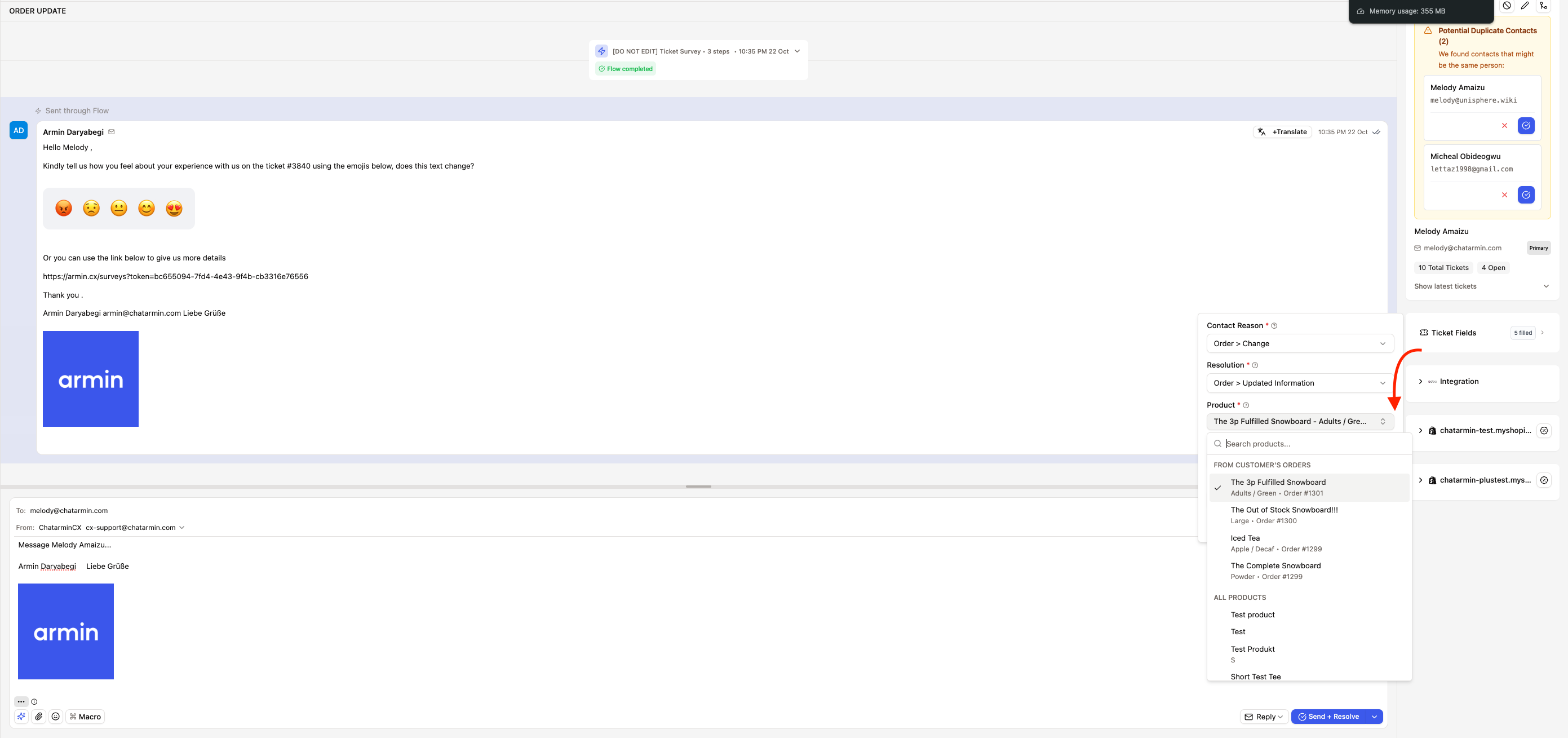
* Searchable interface with two sections:
1. **From Customer Orders** (prioritized)
2. **All Products** (full catalog)
* Shows variants as nested options
* Displays order number for context
* Redis-cached for fast loading (10-minute TTL)
**Display Format:**
```
Product Name - Variant (Order #12345)
Example:
iPhone 15 - 256GB Black (Order #12345)
```
### Text Field
Capture free-form text input from agents.
**Configuration Options:**
* **Single-line**: For short text like names, IDs, or brief notes
* **Multi-line**: For longer descriptions or detailed information
**Behavior:**
* Auto-saves when field loses focus (onBlur)
* Auto-saves when Enter key is pressed
* AI can extract relevant text from conversation
**Use Cases:**
* Customer reference numbers
* Case summaries
* Special instructions
* Tracking IDs
***
### Number Field
Capture numeric values with validation.
**Configuration Options:**
* **Integer**: Whole numbers only
* **Decimal**: Allows decimal points (e.g., 10.99)
**Behavior:**
* Auto-saves when field loses focus (onBlur)
* Auto-saves when Enter key is pressed
* Validates numeric input automatically
**Use Cases:**
* Order quantities
* Refund amounts
* Issue severity scores
* Response time targets
***
### Dropdown Field
Single-select dropdown with custom options.
**Features:**
* Unlimited custom options
* Nested hierarchies support (e.g., Category → Subcategory → Issue Type)
* Searchable options
* Reorderable options via drag-and-drop
**Behavior:**
* Saves immediately on selection
* AI selects most appropriate option based on conversation context
* Updates in real-time
**Use Cases:**
* Issue categories
* Product types
* Resolution methods
* Department routing
**Nested Options Example:**
How you input:
```
Pre-Sale::Product Information::Pricing
Pre-Sale::Product Information::Features
Pre-Sale::Shipping Questions
Post-Sale::Returns
Post-Sale::Refunds
Post-Sale::Exchanges
```
How it displays:
```
Pre-Sale > Product Information > Pricing
Pre-Sale > Product Information > Features
Pre-Sale > Shipping Questions
Post-Sale > Returns
Post-Sale > Refunds
Post-Sale > Exchanges
```
Use `::` as separator when creating nested options. The system displays them with `>` for better readability.
***
### Boolean Field
Simple Yes/No toggle for binary choices.
**Behavior:**
* Saves immediately on toggle
* AI determines true/false based on conversation
* Clear visual indication of state
**Use Cases:**
* VIP customer flag
* Urgent priority indicator
* Refund eligibility
* Warranty coverage
***
### Product Field
Advanced product selection from customer orders and catalog.
**Features:**
* **Order Products First**: Customer's recent order products shown at top
* **Full Catalog Access**: Search entire product inventory
* **Variant Support**: Select specific product variants
* **Order Context**: Shows which order the product is from
* **Multi-Integration**: Works with Shopify, WooCommerce, Billbee, and more
**Behavior:**
* Searchable interface with two sections:
1. **From Customer Orders** (prioritized)
2. **All Products** (full catalog)
* Shows variants as nested options
* Displays order number for context
* Redis-cached for fast loading (10-minute TTL)
**Display Format:**
```
Product Name - Variant (Order #12345)
Example:
iPhone 15 - 256GB Black (Order #12345)
```
 **AI Behavior:**
* Analyzes conversation to identify mentioned products
* Cross-references with customer's order history
* Automatically selects matching product and variant
**Use Cases:**
* Product-specific support tickets
* Warranty claims
* Return/exchange processing
* Product defect tracking
Product field requires active shop integrations (Shopify, WooCommerce, etc.) to function. The field will be empty if no integrations are configured.
***
## AI Auto-Population
AI automatically populates enabled fields by analyzing ticket context.
### How AI Analysis Works
AI analysis runs at two key moments:
1. **On Creation**: When first customer message arrives
2. **On Resolution**: Retry for missing required fields
AI examines:
* Customer messages and ticket subject
* Customer's order history (for product fields)
* Similar resolved tickets (pattern matching)
* Channel-specific context
AI only saves values when confidence exceeds 70%.
* **High Confidence (>0.7)**: Value saved automatically
* **Low Confidence (\<0.7)**: Field left empty for manual review
AI logs reasoning for each field decision, helping you understand and improve accuracy over time.
All AI-enabled fields are analyzed in a single AI call for efficiency.
This reduces API costs and improves response time compared to analyzing fields individually.
### Creation Analysis
When a ticket is created, AI analyzes **all AI-enabled fields**:
```
Customer: "Hi, I ordered an iPhone 15 but it won't turn on"
AI Analysis:
✅ Product Field → iPhone 15 (from order #12345)
✅ Issue Category → Post-Sale → Product Defect
✅ Urgency → High (device not functional)
```
### Resolution Analysis
When resolving a ticket, AI retries **only missing required AI-enabled fields**:
```
Agent has added 3 more messages with troubleshooting steps...
AI Re-analysis:
✅ Resolution Method → Replacement Sent (from conversation)
✅ Root Cause → Hardware Defect (inferred from troubleshooting)
```
AI learns from previously filled fields and doesn't overwrite manual entries unless the field was originally set by AI.
***
## Smart Review Workflow
When AI cannot fill required fields after multiple attempts, tickets are automatically flagged for manual review.
### The Process
When a ticket is resolved with missing required AI-enabled fields:
1. **Attempt 1**: Immediate retry (1 second delay)
2. **Attempt 2**: Retry after 2 seconds
3. **Attempt 3**: Final retry after 4 seconds
After 3 failed attempts:
* Status → `On Hold`
* Sub-status → `Needs Review`
* Ticket appears in "Needs Review" system view
**AI Behavior:**
* Analyzes conversation to identify mentioned products
* Cross-references with customer's order history
* Automatically selects matching product and variant
**Use Cases:**
* Product-specific support tickets
* Warranty claims
* Return/exchange processing
* Product defect tracking
Product field requires active shop integrations (Shopify, WooCommerce, etc.) to function. The field will be empty if no integrations are configured.
***
## AI Auto-Population
AI automatically populates enabled fields by analyzing ticket context.
### How AI Analysis Works
AI analysis runs at two key moments:
1. **On Creation**: When first customer message arrives
2. **On Resolution**: Retry for missing required fields
AI examines:
* Customer messages and ticket subject
* Customer's order history (for product fields)
* Similar resolved tickets (pattern matching)
* Channel-specific context
AI only saves values when confidence exceeds 70%.
* **High Confidence (>0.7)**: Value saved automatically
* **Low Confidence (\<0.7)**: Field left empty for manual review
AI logs reasoning for each field decision, helping you understand and improve accuracy over time.
All AI-enabled fields are analyzed in a single AI call for efficiency.
This reduces API costs and improves response time compared to analyzing fields individually.
### Creation Analysis
When a ticket is created, AI analyzes **all AI-enabled fields**:
```
Customer: "Hi, I ordered an iPhone 15 but it won't turn on"
AI Analysis:
✅ Product Field → iPhone 15 (from order #12345)
✅ Issue Category → Post-Sale → Product Defect
✅ Urgency → High (device not functional)
```
### Resolution Analysis
When resolving a ticket, AI retries **only missing required AI-enabled fields**:
```
Agent has added 3 more messages with troubleshooting steps...
AI Re-analysis:
✅ Resolution Method → Replacement Sent (from conversation)
✅ Root Cause → Hardware Defect (inferred from troubleshooting)
```
AI learns from previously filled fields and doesn't overwrite manual entries unless the field was originally set by AI.
***
## Smart Review Workflow
When AI cannot fill required fields after multiple attempts, tickets are automatically flagged for manual review.
### The Process
When a ticket is resolved with missing required AI-enabled fields:
1. **Attempt 1**: Immediate retry (1 second delay)
2. **Attempt 2**: Retry after 2 seconds
3. **Attempt 3**: Final retry after 4 seconds
After 3 failed attempts:
* Status → `On Hold`
* Sub-status → `Needs Review`
* Ticket appears in "Needs Review" system view
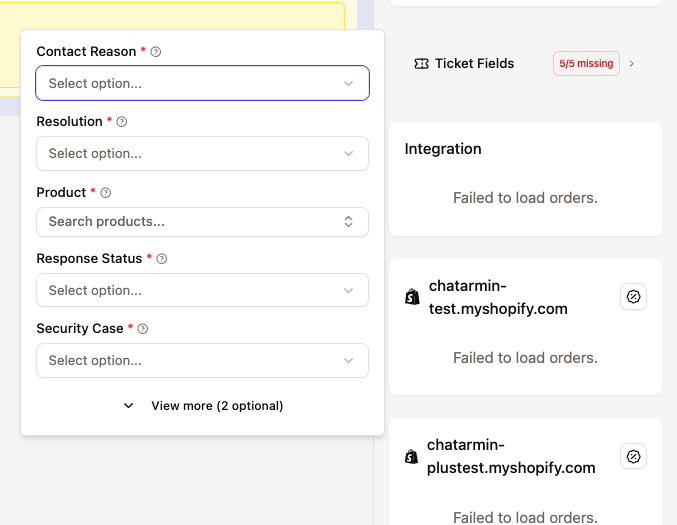
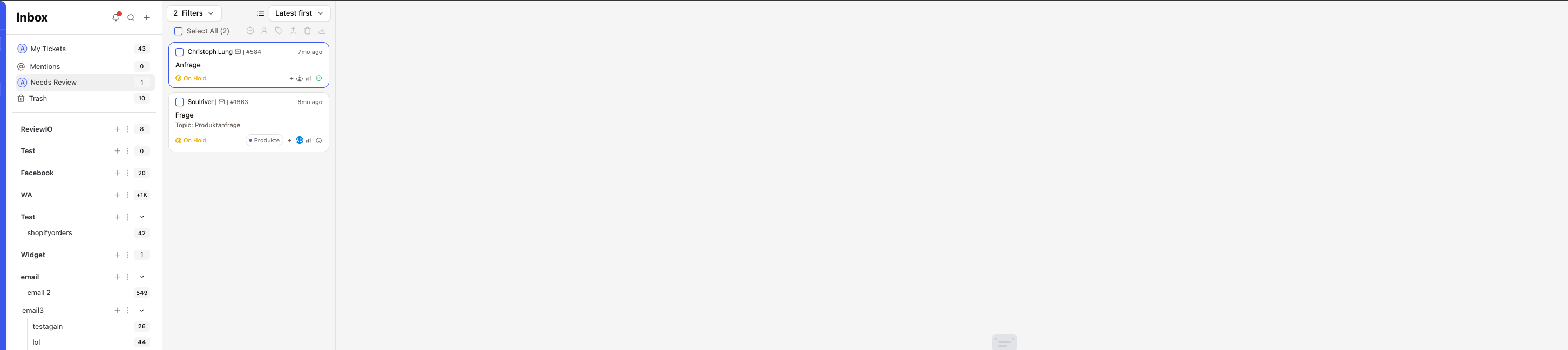 Agent opens ticket from "Needs Review" view:
* Missing fields highlighted in red
* Dialog explains which fields need attention
* Agent fills fields manually
* Ticket can then be resolved
Agent opens ticket from "Needs Review" view:
* Missing fields highlighted in red
* Dialog explains which fields need attention
* Agent fills fields manually
* Ticket can then be resolved
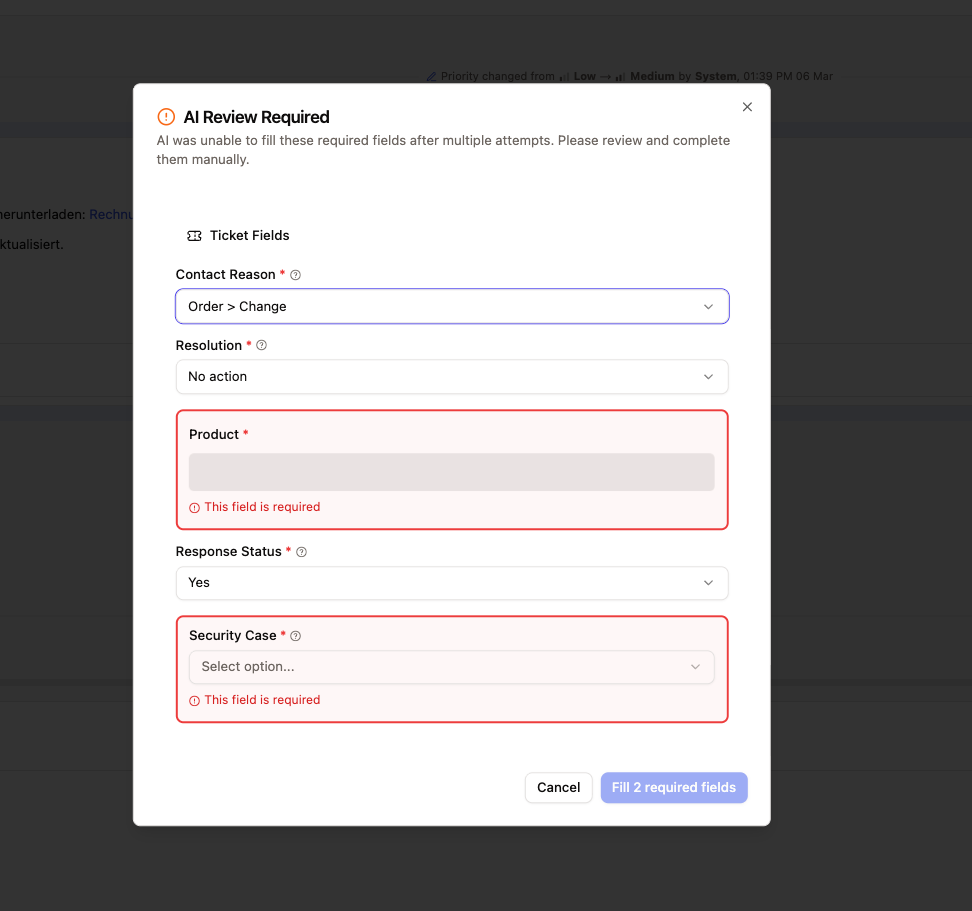 This workflow ensures no required data is lost while maintaining automation efficiency. Most fields are filled automatically, with manual review only when necessary.
***
## Required Field Validation
Ensure critical data is captured before ticket resolution.
### Validation Contexts
**Pre-Resolution Validation** (Chat Input):
* Only checks **non-AI required fields**
* Assumes AI fields will be populated automatically
* Blocks resolution if manual required fields are missing
**Needs Review Validation** (Review Dialog):
* Checks **all required fields** (AI + non-AI)
* Used when ticket is in `needs_review` status
* Shows all missing fields for completion
This workflow ensures no required data is lost while maintaining automation efficiency. Most fields are filled automatically, with manual review only when necessary.
***
## Required Field Validation
Ensure critical data is captured before ticket resolution.
### Validation Contexts
**Pre-Resolution Validation** (Chat Input):
* Only checks **non-AI required fields**
* Assumes AI fields will be populated automatically
* Blocks resolution if manual required fields are missing
**Needs Review Validation** (Review Dialog):
* Checks **all required fields** (AI + non-AI)
* Used when ticket is in `needs_review` status
* Shows all missing fields for completion
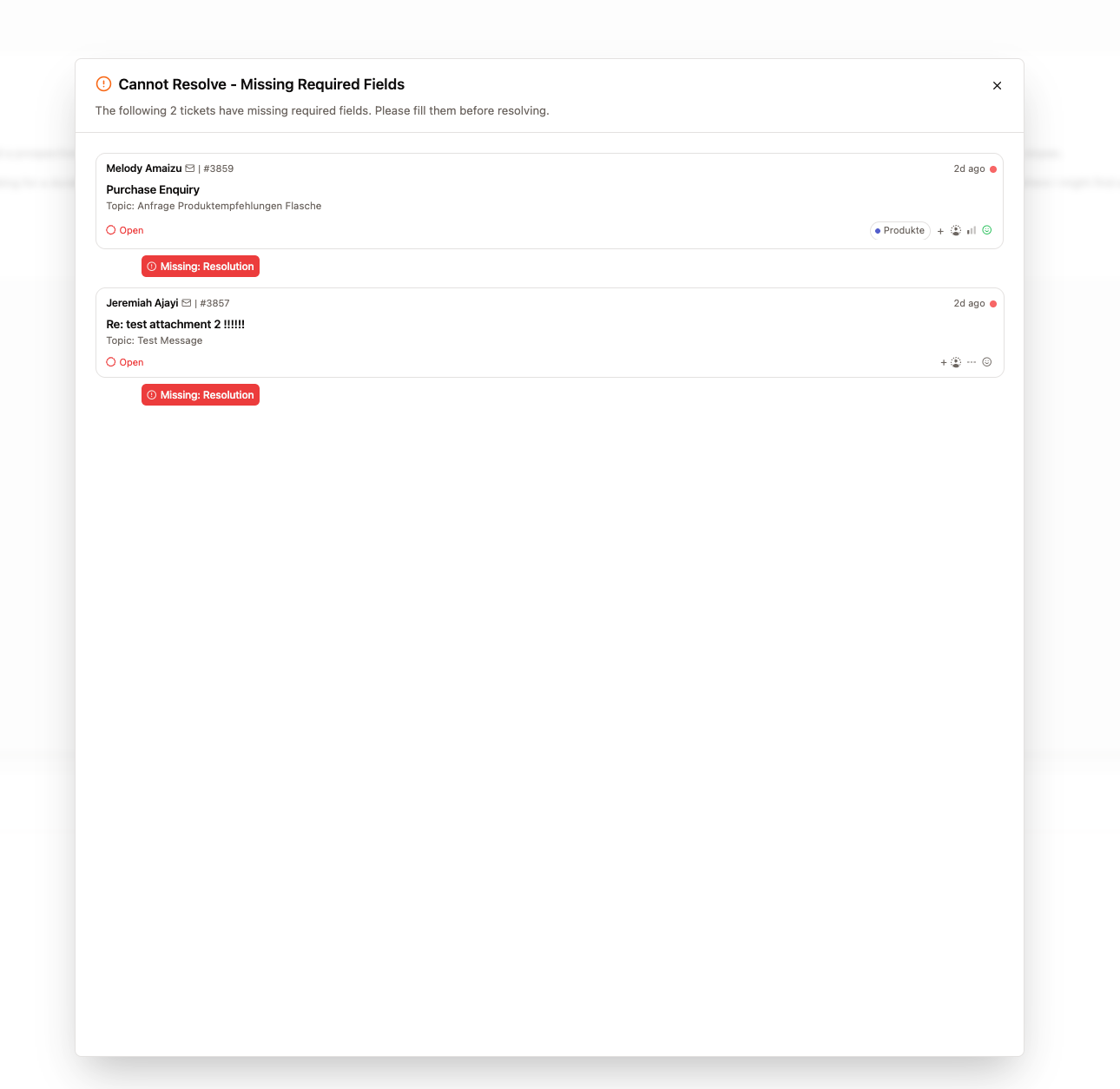
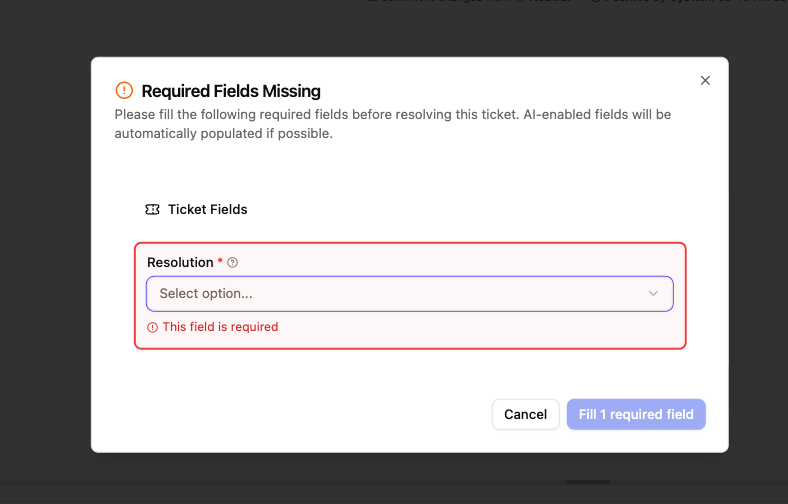 ### Bulk Resolution Validation
When bulk-resolving multiple tickets:
1. System checks all selected tickets for missing required non-AI fields
2. Blocks resolution if any ticket has missing fields
3. Shows preview modal with affected tickets
4. Agent can click ticket to fill fields individually
Bulk resolution validation only checks non-AI required fields to prevent blocking when AI can fill fields automatically during the resolution trigger.
### Bulk Resolution Validation
When bulk-resolving multiple tickets:
1. System checks all selected tickets for missing required non-AI fields
2. Blocks resolution if any ticket has missing fields
3. Shows preview modal with affected tickets
4. Agent can click ticket to fill fields individually
Bulk resolution validation only checks non-AI required fields to prevent blocking when AI can fill fields automatically during the resolution trigger.
 ***
## Channel Configuration
Control which fields appear based on the communication channel.
### How It Works
Each field can be configured for:
* **All Channels**: Field appears on all ticket types
* **Specific Channels**: Field only appears for selected channels (Email, WhatsApp, Voice, etc.)
### Use Cases
**Email-Only Fields:**
* Email domain verification
* Spam classification
**Voice-Only Fields:**
* Call duration
* Call quality rating
**Product-Specific Channels:**
* Product fields for e-commerce channels
* Order number for shop integrations
Channel-specific fields keep your interface clean by only showing relevant fields for each ticket type.
***
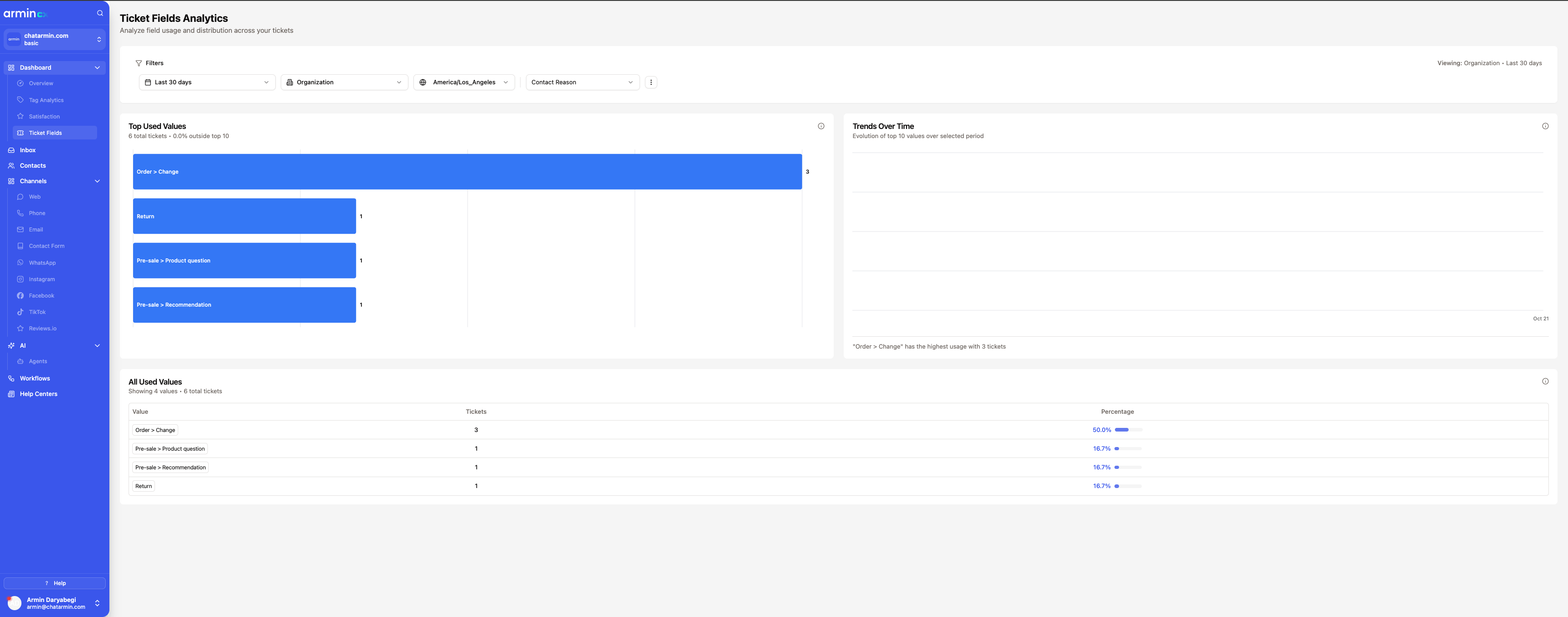
## Analytics Dashboard
Track field performance and identify trends.
### Accessing Analytics
Navigate to **Dashboard** → **Ticket Fields** to view analytics.
***
## Channel Configuration
Control which fields appear based on the communication channel.
### How It Works
Each field can be configured for:
* **All Channels**: Field appears on all ticket types
* **Specific Channels**: Field only appears for selected channels (Email, WhatsApp, Voice, etc.)
### Use Cases
**Email-Only Fields:**
* Email domain verification
* Spam classification
**Voice-Only Fields:**
* Call duration
* Call quality rating
**Product-Specific Channels:**
* Product fields for e-commerce channels
* Order number for shop integrations
Channel-specific fields keep your interface clean by only showing relevant fields for each ticket type.
***
## Analytics Dashboard
Track field performance and identify trends.
### Accessing Analytics
Navigate to **Dashboard** → **Ticket Fields** to view analytics.
 ### Field Selector
Choose which field to analyze from the dropdown selector.
* Shows only active fields
* Groups by field type
* Updates all cards when selection changes
### Date Range Filter
Filter analytics by time period:
* Last 7 days
* Last 30 days
* Last 90 days
* Custom date range
### Data Scope Toggle
Switch between:
* **All Tickets**: Includes tickets without the field set
* **Applied Only**: Only tickets where field has a value
Use "Applied Only" to see distribution among tickets that actually use the field, excluding tickets where the field wasn't relevant.
***
### Top Used Values Card
Horizontal bar chart showing the most popular field values.
**Features:**
* Shows top 10 values by ticket count
* Value labels inside bars
* Ticket counts at bar end
* Click any bar to drill down to filtered inbox
**Example Insights:**
* Most common issue categories
* Popular product selections
* Frequent resolution methods
***
### Trends Over Time Card
Multi-line chart tracking value usage over time.
**Features:**
* Smooth line chart for each field value
* Color-coded lines for easy distinction
* Hover tooltips showing exact counts
* Footer text highlighting highest-usage value
**Use Cases:**
* Identify seasonal trends
* Track issue type evolution
* Monitor product problem patterns
* Measure category shifts over time
***
### All Values Table
Complete paginated table of all field values.
**Features:**
* Sortable columns (Value, Ticket Count, Percentage)
* Search functionality
* Pagination for large datasets
* Click any row to filter inbox by that value
**Benefits:**
* Comprehensive view of all values
* Easy export and analysis
* Quick navigation to related tickets
***
## Filtering Tickets by Fields
Filter your inbox based on custom field values.
### How to Filter
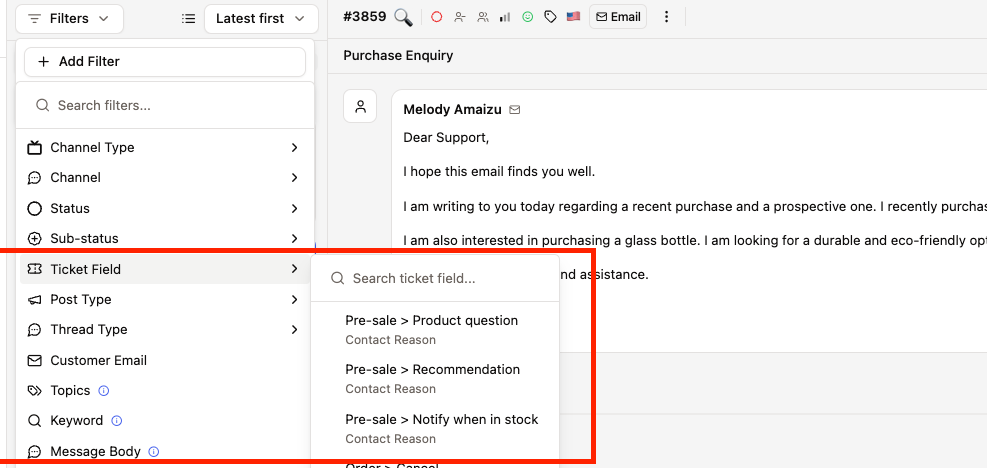
Click the **Filter** button in your inbox toolbar.
Choose **Ticket Field** from the filter options list.
The interface shows:
* **Grouped by Field**: All fields grouped with their values
* **Search Bar**: Quick search across all options
* **Multi-Select**: Select multiple field values
### Field Selector
Choose which field to analyze from the dropdown selector.
* Shows only active fields
* Groups by field type
* Updates all cards when selection changes
### Date Range Filter
Filter analytics by time period:
* Last 7 days
* Last 30 days
* Last 90 days
* Custom date range
### Data Scope Toggle
Switch between:
* **All Tickets**: Includes tickets without the field set
* **Applied Only**: Only tickets where field has a value
Use "Applied Only" to see distribution among tickets that actually use the field, excluding tickets where the field wasn't relevant.
***
### Top Used Values Card
Horizontal bar chart showing the most popular field values.
**Features:**
* Shows top 10 values by ticket count
* Value labels inside bars
* Ticket counts at bar end
* Click any bar to drill down to filtered inbox
**Example Insights:**
* Most common issue categories
* Popular product selections
* Frequent resolution methods
***
### Trends Over Time Card
Multi-line chart tracking value usage over time.
**Features:**
* Smooth line chart for each field value
* Color-coded lines for easy distinction
* Hover tooltips showing exact counts
* Footer text highlighting highest-usage value
**Use Cases:**
* Identify seasonal trends
* Track issue type evolution
* Monitor product problem patterns
* Measure category shifts over time
***
### All Values Table
Complete paginated table of all field values.
**Features:**
* Sortable columns (Value, Ticket Count, Percentage)
* Search functionality
* Pagination for large datasets
* Click any row to filter inbox by that value
**Benefits:**
* Comprehensive view of all values
* Easy export and analysis
* Quick navigation to related tickets
***
## Filtering Tickets by Fields
Filter your inbox based on custom field values.
### How to Filter
Click the **Filter** button in your inbox toolbar.
Choose **Ticket Field** from the filter options list.
The interface shows:
* **Grouped by Field**: All fields grouped with their values
* **Search Bar**: Quick search across all options
* **Multi-Select**: Select multiple field values
 Selected filters appear as active filters. Inbox updates to show matching tickets.
Filters persist in URL for easy sharing and bookmarking.
***
## Field Management
### Active vs Archived Fields
**Active Fields Tab:**
* Currently available fields
* Shown on tickets
* Can be edited or archived
**Archived Fields Tab:**
* Previously used fields
* Hidden from tickets
* Can be restored if needed
* Historical data preserved
Archive fields instead of deleting them to preserve historical data and reporting accuracy.
### Reordering Fields
Drag and drop fields to change their display order on tickets.
The order affects:
* Display sequence in ticket field card
* Tab order for keyboard navigation
* Export/report column ordering
### Editing Fields
Click any field to open the configuration panel and modify:
* Display name and description
* Field type-specific options (e.g., dropdown values)
* AI enabled status
* Required status
* Channel availability
Changing field type on existing fields may cause data loss. Consider creating a new field instead.
***
## Best Practices
### Field Design
Use descriptive names that agents will immediately understand:
✅ Good: "Product Category", "Issue Type", "Resolution Method"
❌ Avoid: "Field1", "Category", "Type"
Dropdowns provide:
* Consistent data for reporting
* Easier filtering and analytics
* AI has clear options to choose from
* Prevents typos and variations
Reserve text fields for truly free-form data.
Good candidates for AI:
* Issue categories (can infer from conversation)
* Product selection (can match with orders)
* Priority level (can assess urgency)
* Resolution type (can determine from outcome)
Keep manual for:
* Internal tracking codes
* Agent-specific notes
* Subjective assessments
Begin with 2-3 essential required fields, then expand based on:
* Agent feedback on usefulness
* AI accuracy rates
* Actual data usage in reports
Too many required fields can slow down resolution workflows.
### AI Optimization
Help AI understand field purpose with good descriptions:
✅ Good: "Select the specific product the customer is asking about from their order history"
❌ Vague: "Product field"
AI uses descriptions as context when analyzing tickets.
Check analytics to see:
* Which fields AI fills successfully
* Which fields often end up in "Needs Review"
* Patterns in AI selections
Adjust dropdown options or descriptions to improve accuracy.
Product fields work best when:
* Shop integration is active (Shopify, WooCommerce, etc.)
* Customer has order history
* Products have clear names and variants
AI can then accurately match conversation mentions to actual products.
### Performance
Recommended limits:
* **Active fields**: 10-15 maximum
* **Required fields**: 3-5 maximum
* **AI-enabled fields**: 5-8 maximum
Too many fields can:
* Slow down ticket loading
* Overwhelm agents
* Reduce AI accuracy
Regularly review field usage in analytics:
* Archive fields with \<5% usage
* Consolidate similar fields
* Remove duplicate or redundant fields
This keeps the interface clean and performant.
***
## Advanced Features
### Conditional Prefetching
Product catalogs are intelligently prefetched:
* Only loads when required product field exists on ticket
* Runs in background while agent reads messages
* Cached results available instantly when agent interacts
This ensures product fields load quickly without wasting resources on tickets that don't need them.
### Real-Time Sync
All field changes sync in real-time via Supabase Realtime:
* Agent fills field → Updates immediately for all viewers
* AI populates field → Appears instantly without refresh
* Field configuration changes → Reflect immediately on open tickets
***
## Troubleshooting
**Possible causes:**
1. Field is archived → Check Archived tab and restore if needed
2. Field is disabled → Toggle "Active" status in field settings
3. Channel mismatch → Check field's enabled channels include the ticket's channel
**Check these:**
1. Field has "AI Enabled" toggled on
2. Ticket has sufficient message context for AI to analyze
3. Field type is supported by AI (all types except pure number calculations)
4. Check logs for AI confidence scores (may be below 0.7 threshold)
5. For product fields: Ensure shop integration is active and customer has orders
**Verify:**
1. Shop integration is connected (Shopify, WooCommerce, etc.)
2. Customer has order history in the system
3. Integration credentials are valid
4. Products are synced (check integration settings)
Product catalog is cached for 10 minutes. If products were just added, wait for cache refresh.
**Context-specific behavior:**
* **Normal resolution**: Only validates non-AI required fields (AI fields auto-filled)
* **Needs review tickets**: Validates all required fields (AI failed, needs manual input)
If validation seems wrong:
1. Check if ticket is in `needs_review` status
2. Verify field's "Required" and "AI Enabled" settings
3. Ensure field is enabled for the ticket's channel
**Performance factors:**
* **First load**: Fetches from shop API (can take 2-5 seconds)
* **Subsequent loads**: Uses Redis cache (instant)
* **Large catalogs**: Products limited to 500 most recent
**To improve:**
* Ensure shop integration API is responsive
* Consider reducing product catalog size at integration level
* Check Redis connection health
***
## FAQ
**Not recommended.** Changing field types can cause data loss or inconsistencies.
**Instead:**
1. Create a new field with the desired type
2. Migrate data if needed
3. Archive the old field
This preserves historical data and prevents breaking existing reports.
**Data is preserved:**
* Historical values remain in database
* Analytics continue to work for historical periods
* Field just becomes hidden from new tickets
You can restore an archived field to make it active again.
**No.** Custom fields are internal only:
* Only visible to agents
* Not shown in customer-facing interfaces
* Not included in customer notifications
Use fields to track internal information without exposing operational details to customers.
For product fields, AI:
1. Analyzes conversation to identify mentioned product
2. Searches customer's orders for matching products
3. Selects specific variant if mentioned
4. If multiple matches, chooses most recently ordered
Agents can always change AI selection if incorrect.
***
Have feedback or feature requests? Contact support or submit via the feedback widget.
Selected filters appear as active filters. Inbox updates to show matching tickets.
Filters persist in URL for easy sharing and bookmarking.
***
## Field Management
### Active vs Archived Fields
**Active Fields Tab:**
* Currently available fields
* Shown on tickets
* Can be edited or archived
**Archived Fields Tab:**
* Previously used fields
* Hidden from tickets
* Can be restored if needed
* Historical data preserved
Archive fields instead of deleting them to preserve historical data and reporting accuracy.
### Reordering Fields
Drag and drop fields to change their display order on tickets.
The order affects:
* Display sequence in ticket field card
* Tab order for keyboard navigation
* Export/report column ordering
### Editing Fields
Click any field to open the configuration panel and modify:
* Display name and description
* Field type-specific options (e.g., dropdown values)
* AI enabled status
* Required status
* Channel availability
Changing field type on existing fields may cause data loss. Consider creating a new field instead.
***
## Best Practices
### Field Design
Use descriptive names that agents will immediately understand:
✅ Good: "Product Category", "Issue Type", "Resolution Method"
❌ Avoid: "Field1", "Category", "Type"
Dropdowns provide:
* Consistent data for reporting
* Easier filtering and analytics
* AI has clear options to choose from
* Prevents typos and variations
Reserve text fields for truly free-form data.
Good candidates for AI:
* Issue categories (can infer from conversation)
* Product selection (can match with orders)
* Priority level (can assess urgency)
* Resolution type (can determine from outcome)
Keep manual for:
* Internal tracking codes
* Agent-specific notes
* Subjective assessments
Begin with 2-3 essential required fields, then expand based on:
* Agent feedback on usefulness
* AI accuracy rates
* Actual data usage in reports
Too many required fields can slow down resolution workflows.
### AI Optimization
Help AI understand field purpose with good descriptions:
✅ Good: "Select the specific product the customer is asking about from their order history"
❌ Vague: "Product field"
AI uses descriptions as context when analyzing tickets.
Check analytics to see:
* Which fields AI fills successfully
* Which fields often end up in "Needs Review"
* Patterns in AI selections
Adjust dropdown options or descriptions to improve accuracy.
Product fields work best when:
* Shop integration is active (Shopify, WooCommerce, etc.)
* Customer has order history
* Products have clear names and variants
AI can then accurately match conversation mentions to actual products.
### Performance
Recommended limits:
* **Active fields**: 10-15 maximum
* **Required fields**: 3-5 maximum
* **AI-enabled fields**: 5-8 maximum
Too many fields can:
* Slow down ticket loading
* Overwhelm agents
* Reduce AI accuracy
Regularly review field usage in analytics:
* Archive fields with \<5% usage
* Consolidate similar fields
* Remove duplicate or redundant fields
This keeps the interface clean and performant.
***
## Advanced Features
### Conditional Prefetching
Product catalogs are intelligently prefetched:
* Only loads when required product field exists on ticket
* Runs in background while agent reads messages
* Cached results available instantly when agent interacts
This ensures product fields load quickly without wasting resources on tickets that don't need them.
### Real-Time Sync
All field changes sync in real-time via Supabase Realtime:
* Agent fills field → Updates immediately for all viewers
* AI populates field → Appears instantly without refresh
* Field configuration changes → Reflect immediately on open tickets
***
## Troubleshooting
**Possible causes:**
1. Field is archived → Check Archived tab and restore if needed
2. Field is disabled → Toggle "Active" status in field settings
3. Channel mismatch → Check field's enabled channels include the ticket's channel
**Check these:**
1. Field has "AI Enabled" toggled on
2. Ticket has sufficient message context for AI to analyze
3. Field type is supported by AI (all types except pure number calculations)
4. Check logs for AI confidence scores (may be below 0.7 threshold)
5. For product fields: Ensure shop integration is active and customer has orders
**Verify:**
1. Shop integration is connected (Shopify, WooCommerce, etc.)
2. Customer has order history in the system
3. Integration credentials are valid
4. Products are synced (check integration settings)
Product catalog is cached for 10 minutes. If products were just added, wait for cache refresh.
**Context-specific behavior:**
* **Normal resolution**: Only validates non-AI required fields (AI fields auto-filled)
* **Needs review tickets**: Validates all required fields (AI failed, needs manual input)
If validation seems wrong:
1. Check if ticket is in `needs_review` status
2. Verify field's "Required" and "AI Enabled" settings
3. Ensure field is enabled for the ticket's channel
**Performance factors:**
* **First load**: Fetches from shop API (can take 2-5 seconds)
* **Subsequent loads**: Uses Redis cache (instant)
* **Large catalogs**: Products limited to 500 most recent
**To improve:**
* Ensure shop integration API is responsive
* Consider reducing product catalog size at integration level
* Check Redis connection health
***
## FAQ
**Not recommended.** Changing field types can cause data loss or inconsistencies.
**Instead:**
1. Create a new field with the desired type
2. Migrate data if needed
3. Archive the old field
This preserves historical data and prevents breaking existing reports.
**Data is preserved:**
* Historical values remain in database
* Analytics continue to work for historical periods
* Field just becomes hidden from new tickets
You can restore an archived field to make it active again.
**No.** Custom fields are internal only:
* Only visible to agents
* Not shown in customer-facing interfaces
* Not included in customer notifications
Use fields to track internal information without exposing operational details to customers.
For product fields, AI:
1. Analyzes conversation to identify mentioned product
2. Searches customer's orders for matching products
3. Selects specific variant if mentioned
4. If multiple matches, chooses most recently ordered
Agents can always change AI selection if incorrect.
***
Have feedback or feature requests? Contact support or submit via the feedback widget.