> ## Documentation Index
> Fetch the complete documentation index at: https://docs2.armin.cx/llms.txt
> Use this file to discover all available pages before exploring further.
# CSAT Survey - Collect Customer Satisfaction Feedback
> Automatically send satisfaction surveys to customers after ticket resolution to measure service quality
## Overview
The CSAT (Customer Satisfaction) Survey flow action enables you to automatically collect feedback from customers after their support interactions. This powerful tool helps measure service quality, identify areas for improvement, and track agent performance through simple emoji-based ratings or detailed survey responses.
## Key Features
Send surveys via Email, WhatsApp, Web Widget, Instagram, Facebook, and TikTok
Built-in duplicate prevention ensures customers receive only one survey per ticket
Customize messages for each channel with dynamic variables and formatting
One-click emoji ratings (😡 😟 😐 😊 😍) or full survey links for detailed feedback
## Prerequisites
Before using the CSAT Survey action, ensure: - Your workflow has a trigger that provides ticket
context (e.g., "Ticket Resolved", "Ticket Closed") - Customer contact information is available in
the ticket - The ticket has a valid channel associated with it
## Configuration Guide
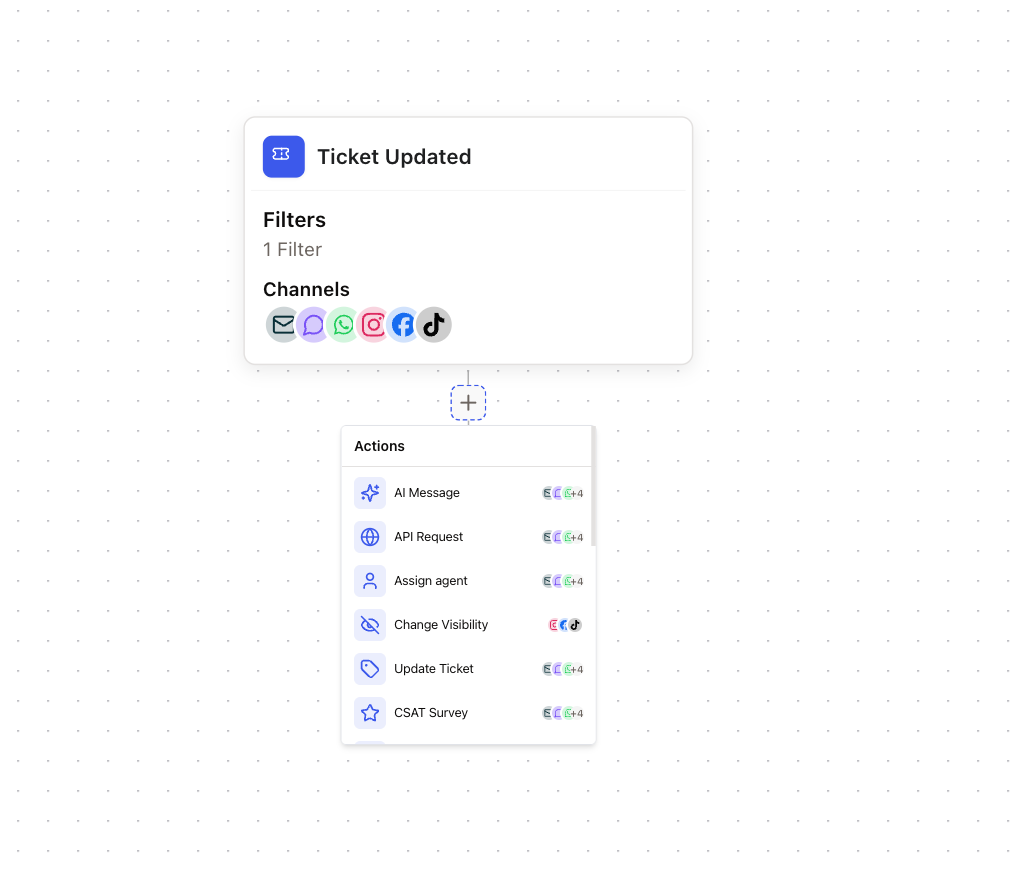
Navigate to your workflow and click the **+** button to add a new action. Search for "CSAT Survey" and select it from the list.
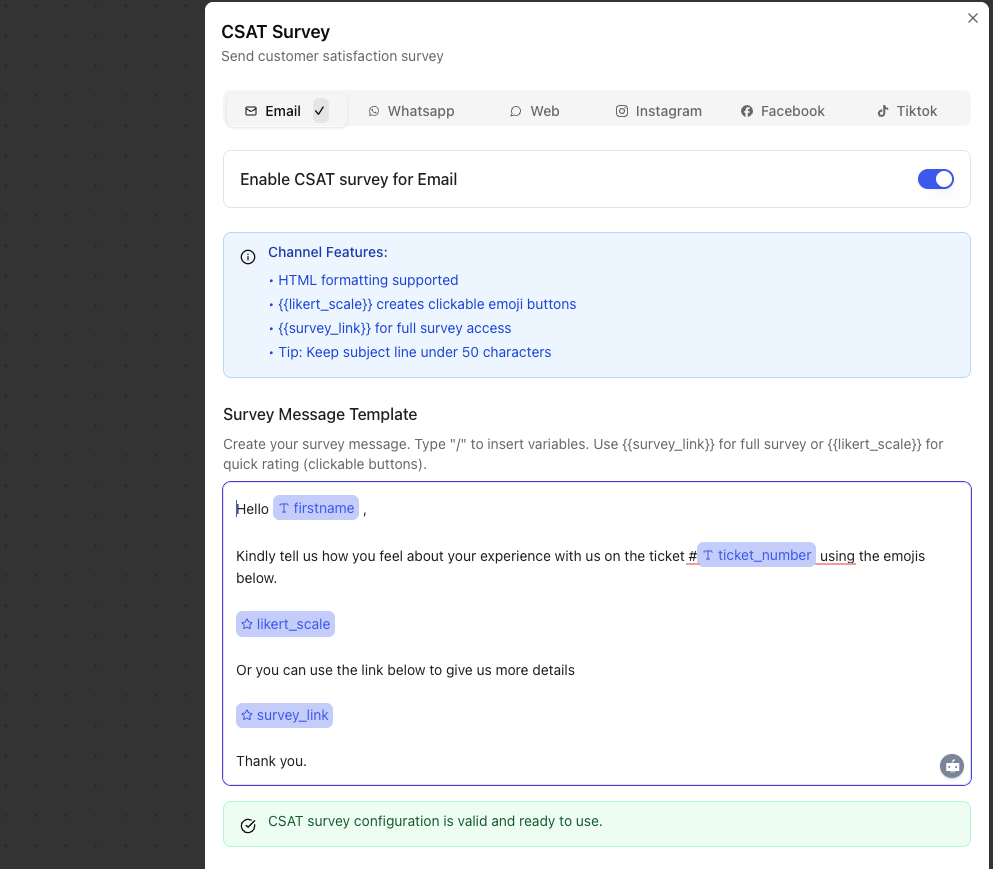
 The CSAT Survey action displays tabs for each available channel. Click on a channel tab to
configure its settings.
The CSAT Survey action displays tabs for each available channel. Click on a channel tab to
configure its settings.
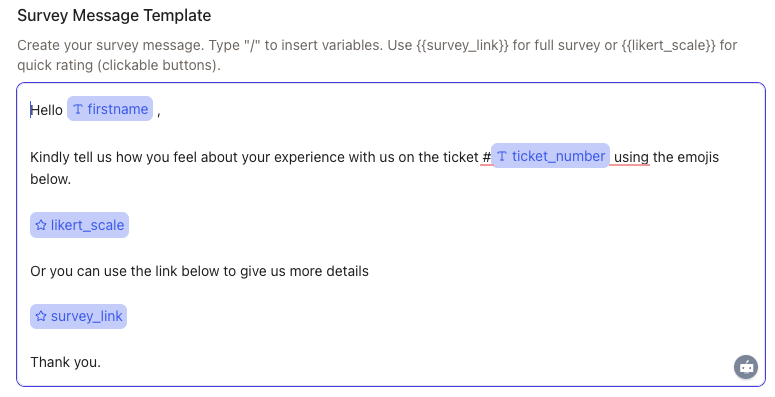
 For each channel: - Toggle the switch to enable/disable the channel - Compose your survey message
using the text editor - Insert variables using the `/` key
Use the rich text editor to create engaging survey messages. Type `/` to insert variables:
For each channel: - Toggle the switch to enable/disable the channel - Compose your survey message
using the text editor - Insert variables using the `/` key
Use the rich text editor to create engaging survey messages. Type `/` to insert variables:
 Social channels have character limits: - Instagram: 1,000 characters - Facebook: 900 characters
* TikTok: 150 characters
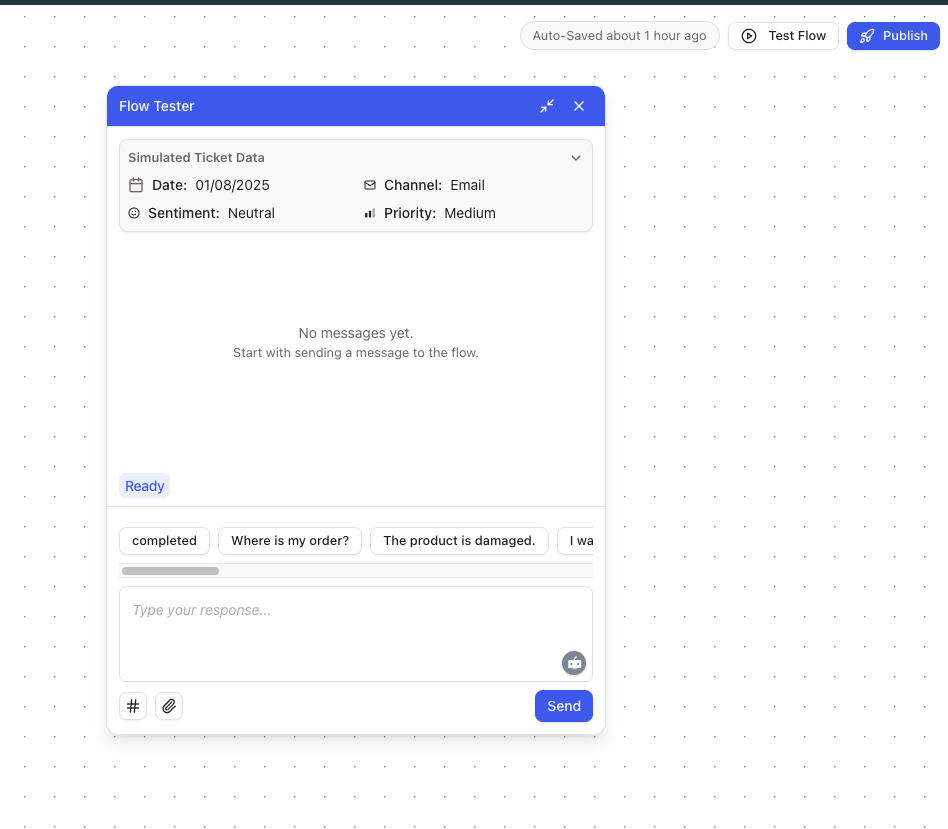
Use the workflow tester to preview how your surveys will appear across different channels.
Social channels have character limits: - Instagram: 1,000 characters - Facebook: 900 characters
* TikTok: 150 characters
Use the workflow tester to preview how your surveys will appear across different channels.
 ## Channel-Specific Features
Each channel has unique capabilities and limitations for CSAT surveys:
**Features:**
* Full HTML formatting support
* Clickable emoji rating buttons in a styled card
* Embedded "Rate your conversation" section
* No character limit
**Supported Variables:**
* `{{likert_scale}}` - Displays clickable emoji buttons (😡 😟 😐 😊 😍)
* `{{survey_link}}` - Direct link to full survey page
Email surveys have the highest response rates due to the visual emoji buttons
**Features:**
* CTA button that opens survey in browser
* Plain text messages (HTML automatically stripped)
* Native WhatsApp "Rate Us" button
* No character limit
**Supported Variables:**
* `{{survey_link}}` - Direct link to survey (required)
* `{{likert_scale}}` - Not supported (use survey\_link instead)
WhatsApp displays a "Rate Us" button that opens the survey page in the customer's browser
**Features:**
* Interactive emoji rating buttons (😡 😟 😐 😊 😍)
* One-click ratings directly in chat
* Seamless in-widget experience
* No character limit
**Supported Variables:**
* `{{likert_scale}}` - Creates 5 clickable emoji rating buttons
* `{{survey_link}}` - Direct link to survey page
Widget users can rate with a single click - no need to leave the chat!
**Instagram**, **Facebook**, **TikTok**, **YouTube**
**Coming Soon** - Interactive CSAT surveys for social channels are currently in development. For now, you can share the survey link manually via workflow trigger in the chat input or use email/WhatsApp/Web Widget for full CSAT functionality.
**Current Limitations:**
* Survey link sharing only (no interactive buttons)
* `{{likert_scale}}` not supported
* Character limits apply (Instagram: 1,000, Facebook: 900, TikTok: 150)
**Available Variable:**
* `{{survey_link}}` - Direct link to survey page
## Available Variables
Use these variables in your survey messages to personalize the experience:
Customer's first name from their profile
Customer's last name from their profile
Customer's email address
Customer's phone number
Unique ticket identifier (e.g., "2844")
Ticket subject or title
Channel where ticket was created
Current ticket status
Unique URL to the survey page. Always available for all channels.
Channel-specific rating interface. Shows clickable emoji buttons for Email and Web Widget. Not supported for WhatsApp or social channels.
## Message Templates
Here are example templates for different channels:
```text Email Template theme={null}
Hello {{contact.firstname}},
Thank you for contacting our support team regarding ticket #{{ticket.ticket_number}} - "{{ticket.subject}}".
We'd love to hear about your experience:
{{likert_scale}}
Or if you prefer, you can provide detailed feedback here: {{survey_link}}
```
For your Information: `- Signature is getting automatically added based on your channel`
```text WhatsApp Template theme={null}
Hi {{contact.firstname}}! 👋
Thanks for reaching out about "{{ticket.subject}}" (Ticket #{{ticket.ticket_number}}).
We'd love to hear about your experience! Please rate us using the button below.
{{survey_link}}
```
```text Web Widget Template theme={null}
Hi {{contact.firstname}}! 👋
Thanks for chatting with us about ticket #{{ticket.ticket_number}}.
How would you rate your experience?
{{likert_scale}}
Or leave detailed feedback here: {{survey_link}}
```
```text Instagram/Facebook Template theme={null}
Hey {{contact.firstname}}! Thanks for contacting us about "{{ticket.subject}}".
We'd appreciate your feedback on how we did: {{survey_link}}
Your opinion helps us improve! 🙏
```
```text TikTok Template (150 char limit) theme={null}
How did we do with ticket #{{ticket.ticket_number}}? Rate us: {{survey_link}}
```
For your Information: `- Signature is getting automatically added based on your channel`
## Survey Analytics
Track and analyze survey responses through the dedicated surveys dashboard:
## Channel-Specific Features
Each channel has unique capabilities and limitations for CSAT surveys:
**Features:**
* Full HTML formatting support
* Clickable emoji rating buttons in a styled card
* Embedded "Rate your conversation" section
* No character limit
**Supported Variables:**
* `{{likert_scale}}` - Displays clickable emoji buttons (😡 😟 😐 😊 😍)
* `{{survey_link}}` - Direct link to full survey page
Email surveys have the highest response rates due to the visual emoji buttons
**Features:**
* CTA button that opens survey in browser
* Plain text messages (HTML automatically stripped)
* Native WhatsApp "Rate Us" button
* No character limit
**Supported Variables:**
* `{{survey_link}}` - Direct link to survey (required)
* `{{likert_scale}}` - Not supported (use survey\_link instead)
WhatsApp displays a "Rate Us" button that opens the survey page in the customer's browser
**Features:**
* Interactive emoji rating buttons (😡 😟 😐 😊 😍)
* One-click ratings directly in chat
* Seamless in-widget experience
* No character limit
**Supported Variables:**
* `{{likert_scale}}` - Creates 5 clickable emoji rating buttons
* `{{survey_link}}` - Direct link to survey page
Widget users can rate with a single click - no need to leave the chat!
**Instagram**, **Facebook**, **TikTok**, **YouTube**
**Coming Soon** - Interactive CSAT surveys for social channels are currently in development. For now, you can share the survey link manually via workflow trigger in the chat input or use email/WhatsApp/Web Widget for full CSAT functionality.
**Current Limitations:**
* Survey link sharing only (no interactive buttons)
* `{{likert_scale}}` not supported
* Character limits apply (Instagram: 1,000, Facebook: 900, TikTok: 150)
**Available Variable:**
* `{{survey_link}}` - Direct link to survey page
## Available Variables
Use these variables in your survey messages to personalize the experience:
Customer's first name from their profile
Customer's last name from their profile
Customer's email address
Customer's phone number
Unique ticket identifier (e.g., "2844")
Ticket subject or title
Channel where ticket was created
Current ticket status
Unique URL to the survey page. Always available for all channels.
Channel-specific rating interface. Shows clickable emoji buttons for Email and Web Widget. Not supported for WhatsApp or social channels.
## Message Templates
Here are example templates for different channels:
```text Email Template theme={null}
Hello {{contact.firstname}},
Thank you for contacting our support team regarding ticket #{{ticket.ticket_number}} - "{{ticket.subject}}".
We'd love to hear about your experience:
{{likert_scale}}
Or if you prefer, you can provide detailed feedback here: {{survey_link}}
```
For your Information: `- Signature is getting automatically added based on your channel`
```text WhatsApp Template theme={null}
Hi {{contact.firstname}}! 👋
Thanks for reaching out about "{{ticket.subject}}" (Ticket #{{ticket.ticket_number}}).
We'd love to hear about your experience! Please rate us using the button below.
{{survey_link}}
```
```text Web Widget Template theme={null}
Hi {{contact.firstname}}! 👋
Thanks for chatting with us about ticket #{{ticket.ticket_number}}.
How would you rate your experience?
{{likert_scale}}
Or leave detailed feedback here: {{survey_link}}
```
```text Instagram/Facebook Template theme={null}
Hey {{contact.firstname}}! Thanks for contacting us about "{{ticket.subject}}".
We'd appreciate your feedback on how we did: {{survey_link}}
Your opinion helps us improve! 🙏
```
```text TikTok Template (150 char limit) theme={null}
How did we do with ticket #{{ticket.ticket_number}}? Rate us: {{survey_link}}
```
For your Information: `- Signature is getting automatically added based on your channel`
## Survey Analytics
Track and analyze survey responses through the dedicated surveys dashboard:
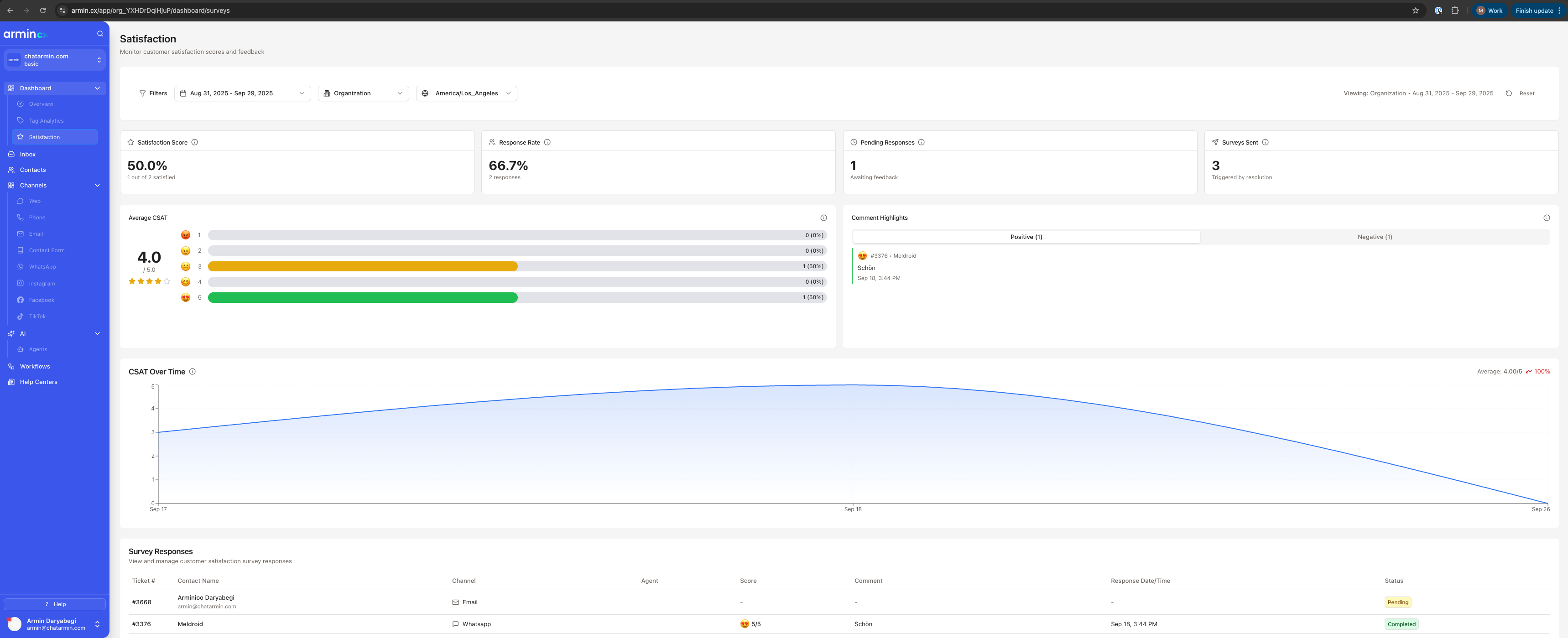 **Available metrics:**
* Overall satisfaction score
* Response rate by channel
* Individual agent performance
* Trend analysis over time
* Detailed customer comments
## Best Practices
**Timing is crucial**: Send surveys 24-48 hours after ticket resolution for optimal response rates
**Personalization matters**: Always use the customer's name and reference their specific issue
**Keep it simple**: One-click ratings get 3x more responses than detailed surveys
**Test thoroughly**: Use the workflow tester with different scenarios before going live
**Monitor regularly**: Check survey analytics weekly to identify trends and coaching opportunities
## Technical Details
**Survey Expiration**: All surveys expire after 30 days to maintain data relevance
**Duplicate Prevention**: Each ticket can only trigger one survey, preventing customer fatigue
**Security**: Survey links use secure tokens and cannot be guessed or shared
**Data Retention**: Survey responses are permanently linked to tickets and agents for historical analysis
## Common Issues & Solutions
**Possible causes:**
* Ticket missing contact information
* Channel not enabled in survey configuration
* Survey already sent for this ticket
* Customer has no email/phone for the channel
**Solution:**
Check the workflow execution logs for specific error messages
**Possible causes:** - Incorrect variable syntax (check spelling) - Variable data not available
(e.g., contact.firstname is empty) - Using unsupported variables for the channel **Solution:** Use
the workflow tester to verify variable values and availability
**Possible causes:** - Sending surveys too late after resolution - Message not engaging or too
long - Missing personalization - Wrong channel for customer preference **Solution:** A/B test
different message templates and sending times
**Possible causes:**
* Message too long for social channels
* Variables expanding beyond limit
**Solution:**
Use the character counter in the editor and create channel-specific short versions
## Example Workflows
**Condition based Customer Surveys:**
1. Trigger: Ticket Closed
2. Condition: Check if customer meets a condition
3. CSAT Survey: Send personalized survey
**Available metrics:**
* Overall satisfaction score
* Response rate by channel
* Individual agent performance
* Trend analysis over time
* Detailed customer comments
## Best Practices
**Timing is crucial**: Send surveys 24-48 hours after ticket resolution for optimal response rates
**Personalization matters**: Always use the customer's name and reference their specific issue
**Keep it simple**: One-click ratings get 3x more responses than detailed surveys
**Test thoroughly**: Use the workflow tester with different scenarios before going live
**Monitor regularly**: Check survey analytics weekly to identify trends and coaching opportunities
## Technical Details
**Survey Expiration**: All surveys expire after 30 days to maintain data relevance
**Duplicate Prevention**: Each ticket can only trigger one survey, preventing customer fatigue
**Security**: Survey links use secure tokens and cannot be guessed or shared
**Data Retention**: Survey responses are permanently linked to tickets and agents for historical analysis
## Common Issues & Solutions
**Possible causes:**
* Ticket missing contact information
* Channel not enabled in survey configuration
* Survey already sent for this ticket
* Customer has no email/phone for the channel
**Solution:**
Check the workflow execution logs for specific error messages
**Possible causes:** - Incorrect variable syntax (check spelling) - Variable data not available
(e.g., contact.firstname is empty) - Using unsupported variables for the channel **Solution:** Use
the workflow tester to verify variable values and availability
**Possible causes:** - Sending surveys too late after resolution - Message not engaging or too
long - Missing personalization - Wrong channel for customer preference **Solution:** A/B test
different message templates and sending times
**Possible causes:**
* Message too long for social channels
* Variables expanding beyond limit
**Solution:**
Use the character counter in the editor and create channel-specific short versions
## Example Workflows
**Condition based Customer Surveys:**
1. Trigger: Ticket Closed
2. Condition: Check if customer meets a condition
3. CSAT Survey: Send personalized survey